Tools & Pipeline
The following items on this page are a selection of tool tasks
I completed while working at Surgical Science / Mimic.
Click any thumbnail image to see the full-screen image or video.
Asset Pipeline
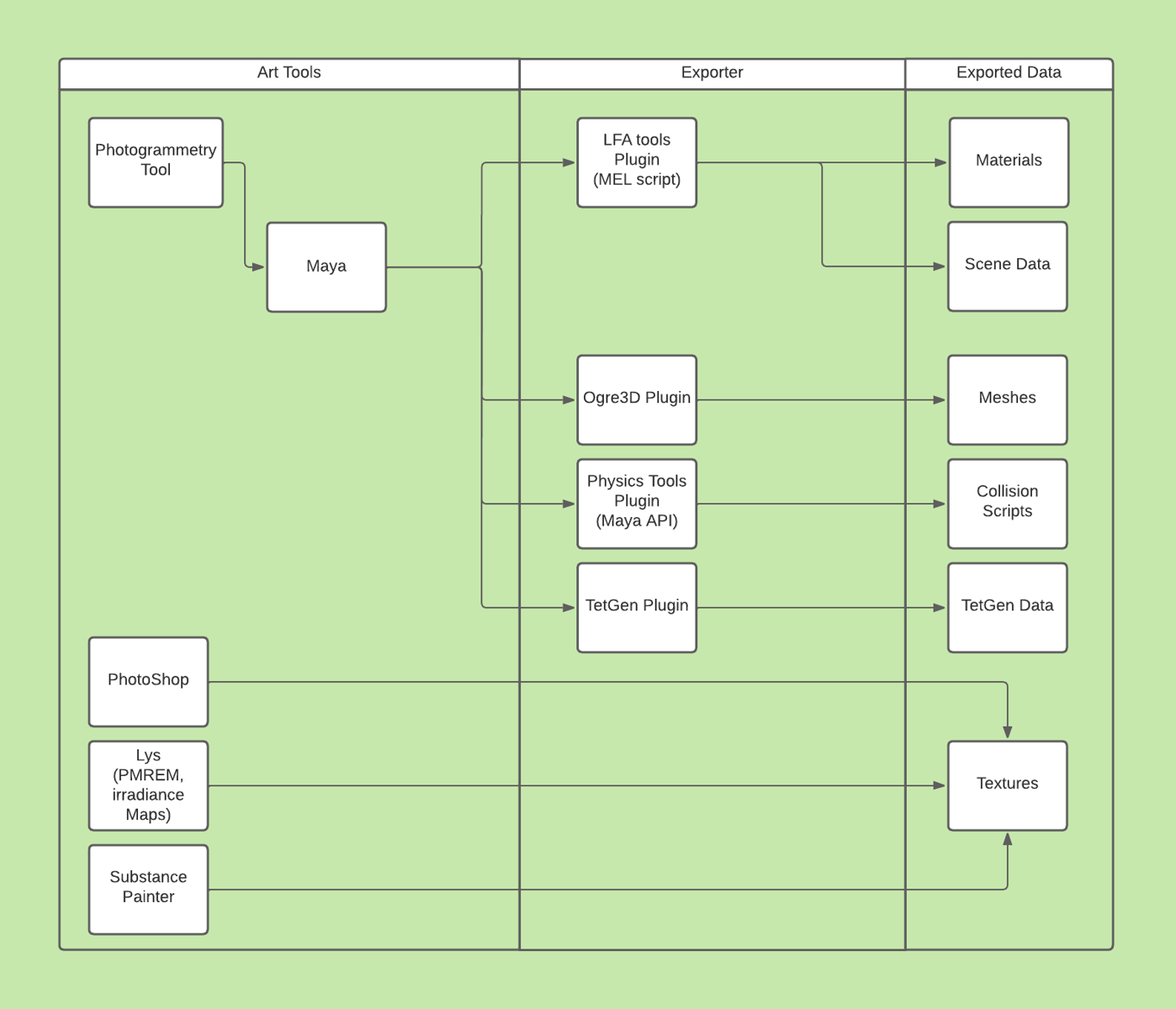
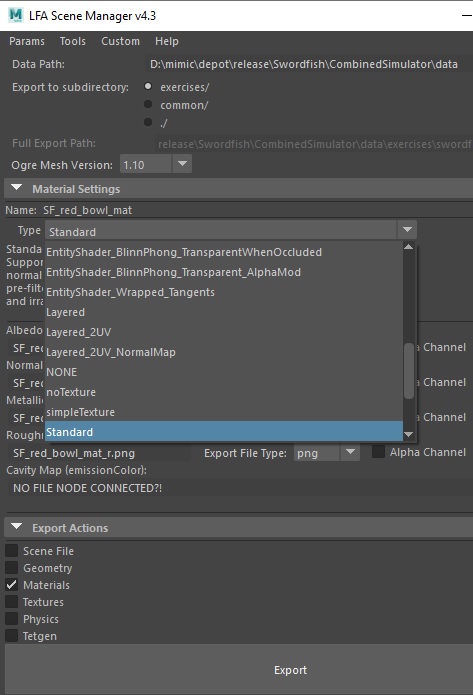
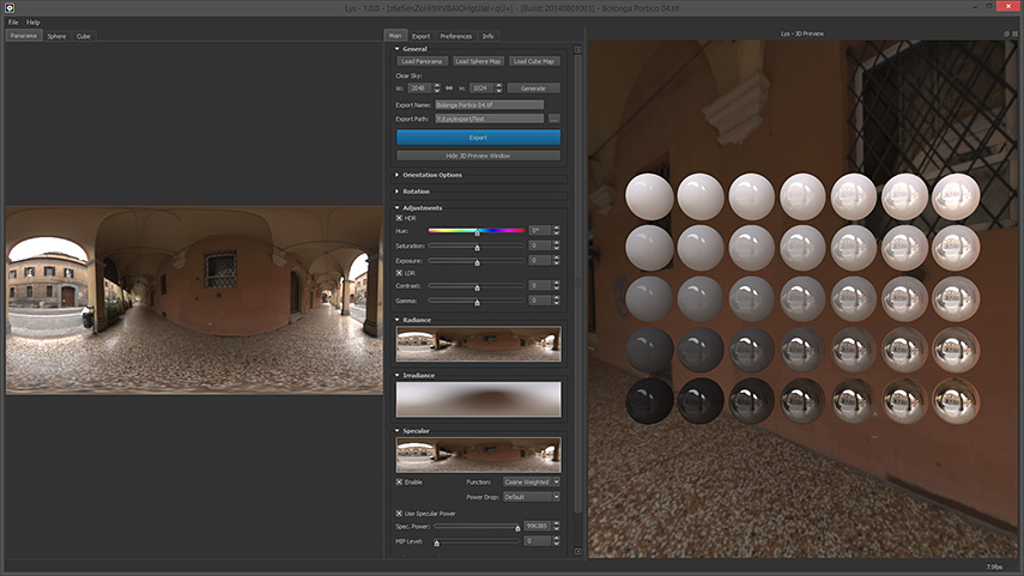
One of my first tasks at Mimic was to develop an asset pipeline from Maya to our in-house custom engine. I started with the LFA tools plugin which was written in MEL script and subsequently rewrote nearly the entire plugin in order to fit our specific needs. The first image shows a flowchart of our final asset pipeline for that engine after full development. The second image shows an exporter dialog highlighting the selection of the Standard material. I wrote the Standard shader as an uber-shader and the majority of our assets use this shader/material. The image shows several other specialized materials as well. When I converted our renderer to physically-based rendering and image-based lighting, I added the Lys tool to the pipeline, which is a tool for generating Radiance, Irradiance, and Prefiltered Mipmapped Radiance Environment Maps (PMREM) from HDR images. An image of the Lys tool is shown below.
Debugging Tools
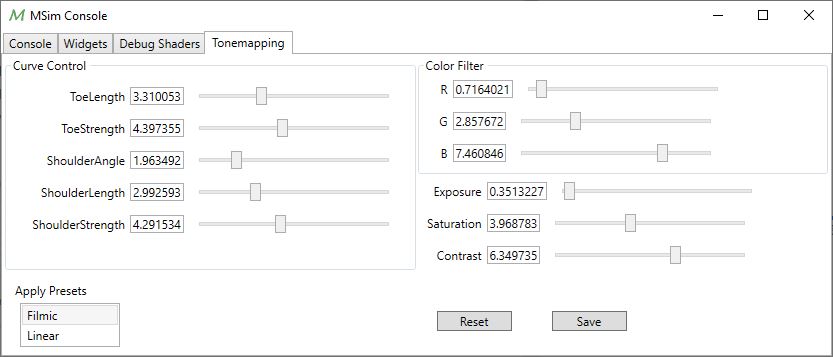
The next images show two versions of debugging tools I worked on. I first expanded our MSim Console application which was written in C# and WPF. This application communicated with the engine using the engine's event system. The events were written in Lua script. The first image shows the tone-mapping tab of the tools which I created to allow the generation of custom tone-mapping curves while actively running the simulation and seeing the results in real-time. Once tuned, the settings can be exported and become the new defaults on next exercise load.
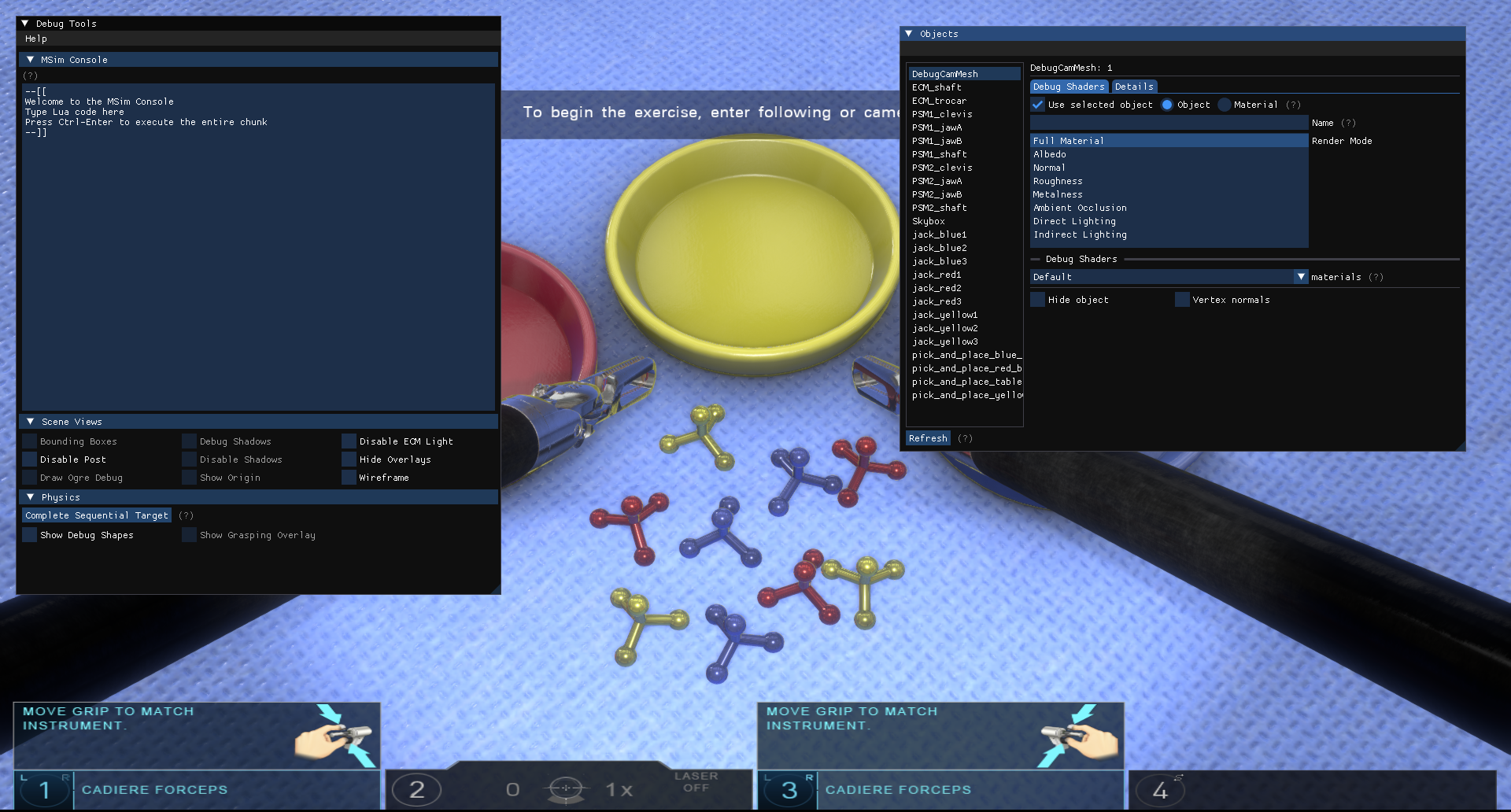
Later, I ported the debugging tools to Dear ImGui and expanded them further. This was a massive improvement, because the debugging tools were closely integrated with the engine and had knowledge of and access to all objects. Development of new tools was greatly simplified and accelerated.
In addition to the front-end GUIs, I implemented a whole host of back-end debugging support in the engine itself, such as a general-purpose debug shape drawer, full-screen rendering of various material and lighting components, debug shaders and rendering modes, stereo-separation tests, etc.
Pattern Cutting Mesh Pipeline
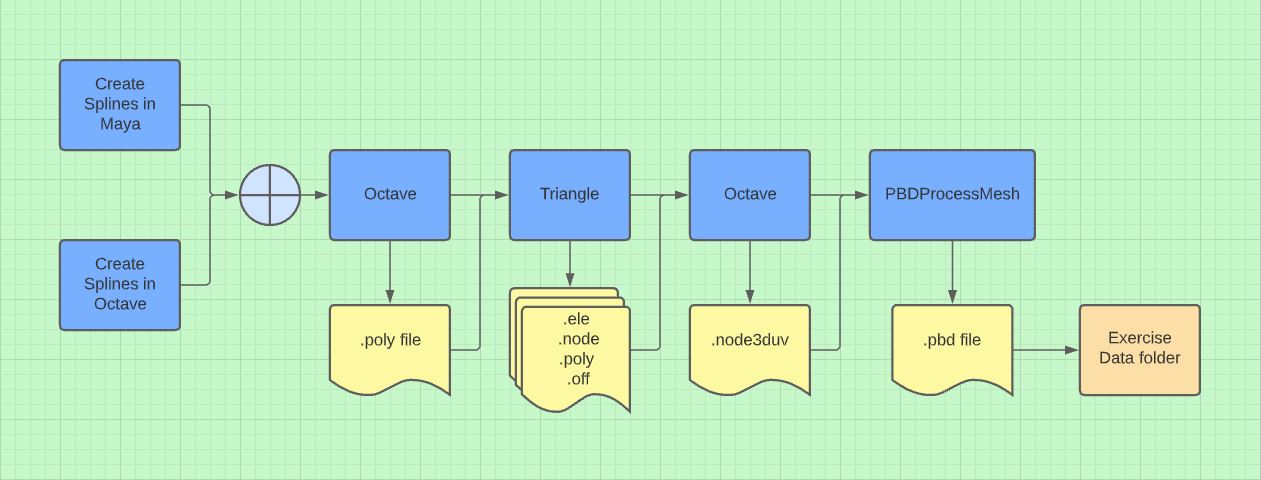
The following images describe a process I expanded to an automated pipeline for generating meshes with embedded patterns for pattern cutting exercises. The first image is a flow chart describing the pipeline from initial creation to final processed data, which is stored in the exercise's data folder and ready for loading into the exercise at run-time.
- Splines: Splines can either be created procedurally in Matlab/GNU Octave or authored in Maya by an artist. The spline data is fed into Octave which generates a .poly file readable by Triangle.
- Triangulation: Triangle is a robust 2D mesh generation software that can generate exact, constrained, and conforming Delaunay triangulations. It also respects the spline boundaries which allows us to embed the desired patterns into the mesh. Additionally, we can add meta-data to each triangle which allows us to know where on the mesh the user is cutting. This is useful for deriving metrics to grade the performance of the user's cutting skill.
- UV coordinates: The triangulated mesh is then fed back into Octave in order to generate UV coordinates for each vertex of the mesh, thereby allowing the mesh to be rendered with our standard materials and textures.
- PBD processing: The mesh data is then passed to our own custom PBDProcessMesh utility, which outputs a .pbd file and stores it in the exercise's data folder.
- Simulation: The .pbd file is read at load-time and used to initialize the Position Based Dynamics (PBD) particle physics simulation for the mesh.
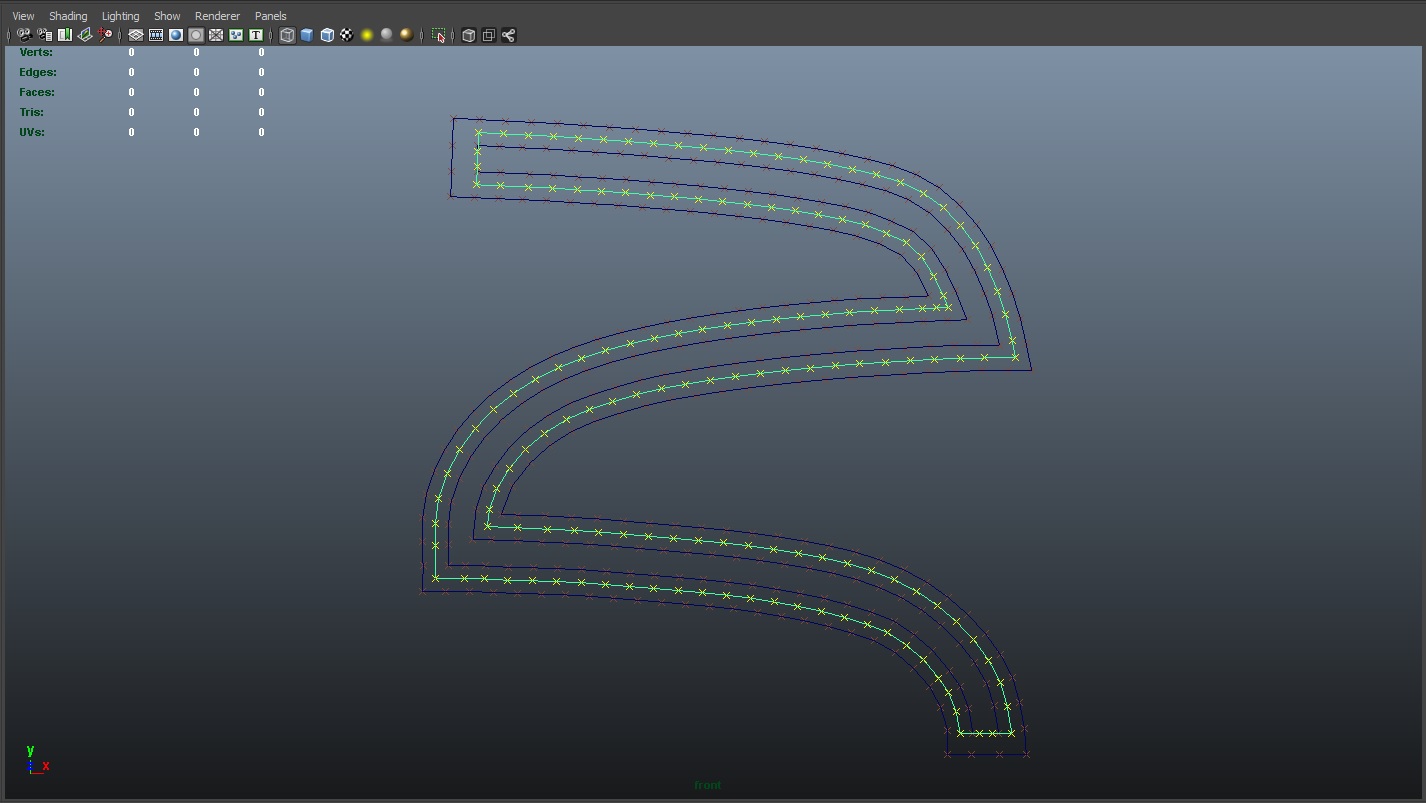
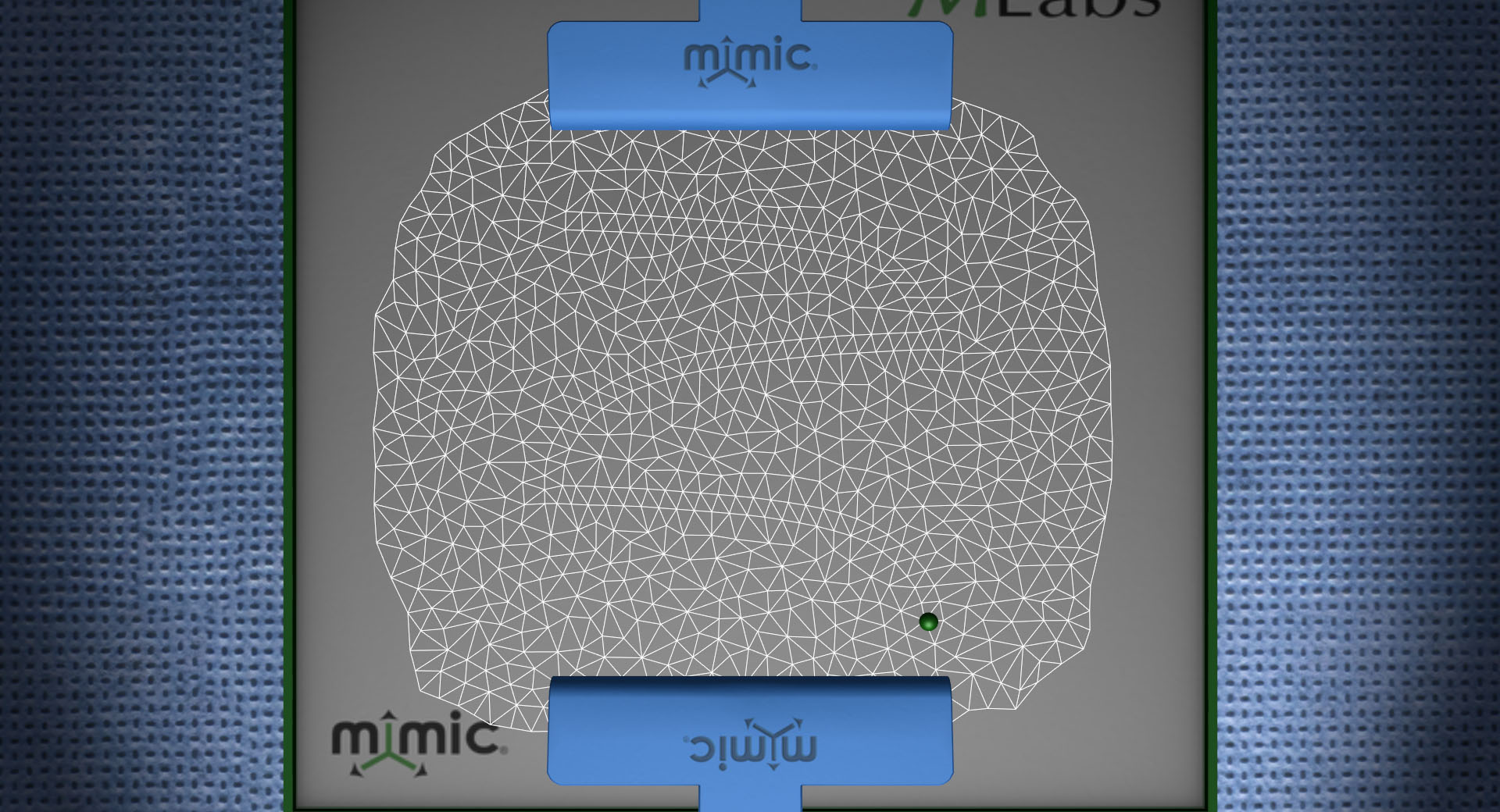
The next images show a spline pattern authored in Maya and the final resulting mesh from that spline. The mesh is rendered in wireframe to show the well ordered triangle topology and how the spline has been embedded in the mesh.
To see a mesh in action that was generated with this pipeline and rendered with full materials and lighting see the Physics & Simulation page.